

In this tutorial you will learn how you can use WPO365 to connect your WordPress website with Microsoft Graph in order to start sending emails from a user’s Microsoft 365 account.
Supported features
Delivery
- Send WordPress emails using Microsoft Graph instead of SMTP from one of your Microsoft 365 Exchange Online / Mail enabled accounts.
- Choose between delegated (send mail as a user) and application-level (send mail as any user) type permissions.
Send as HTML
- Send emails formatted as HTML.
Save to sent items
- Emails sent will be saved in the account’s mailbox in the Sent Items folder, further helping to track (successful) mail delivery.
Attachments
- Send files from your WordPress website as attachments.
Configuration / Send test email
- Easy configuration with detailed step-by-step Getting started guide and video.
- Send test email to recipients incl. CC, BCC and attachment.
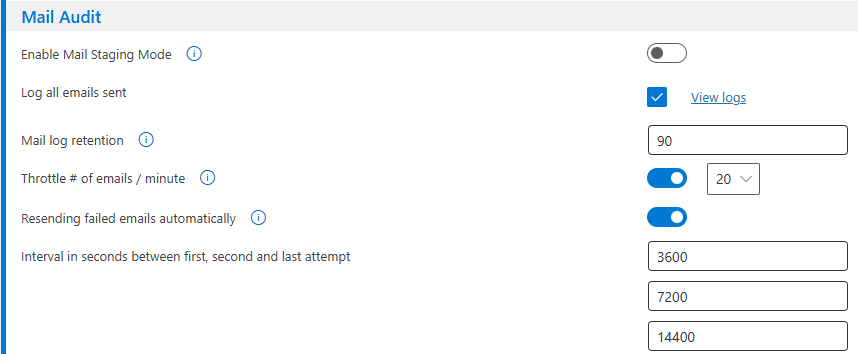
Mail audit / send again (premium)
- Log every email sent from your WordPress website, review errors and try to send unsuccessfully sent mails again.
- Automatically retry to send failed emails.
Send from an alias email address (premium)
- Send emails from an alias address (but submit to Microsoft Graph as the authorized user).
Send as / Send on behalf of (premium)
- Send email as / on behalf of another user or Distribution List.
Shared Mailbox (premium)
- Send email from an Microsoft 365 Shared Mailbox.
Staging mode (premium)
- Mail Staging Mode is useful for debugging and staging environments. WordPress emails will be logged and saved in the database instead of being sent.
Support for large attachments (premium)
- Add support to send WordPress emails with attachments larger than 3 MB using Microsoft Graph.
Dynamically configure “From” (premium)
- Allow forms to override “From” address e.g allow Contact Form 7 to dynamically configure the account used to send the email from (requires application-level Mail.Send permissions).
Send as BCC (premium)
- Send emails as BCC instead and prevent reply-to-all mail pollution.
Throttle nr. of emails sent per minute (premium)
- Throttle the number of emails your website will send per minute.
Reply-To (premium)
- Configure a default reply-to mail address if this should differ from the account’s mail address that is used to send WordPress transactional emails from.
WP-Config for AAD secrets (premium)
- Further improve overall security by choosing to store Azure Active Directory secrets in your WordPress WP-Config.php (on disk) and have those secrets removed from the database.
Heads up: The screenshots and UI shown in this written tutorial are from an earlier version and do not yet reflect the updated interface introduced in the release from 30th March 2026.
For the most accurate and current walkthrough, please refer to the new video tutorial below, which demonstrates the latest UI step by step.