

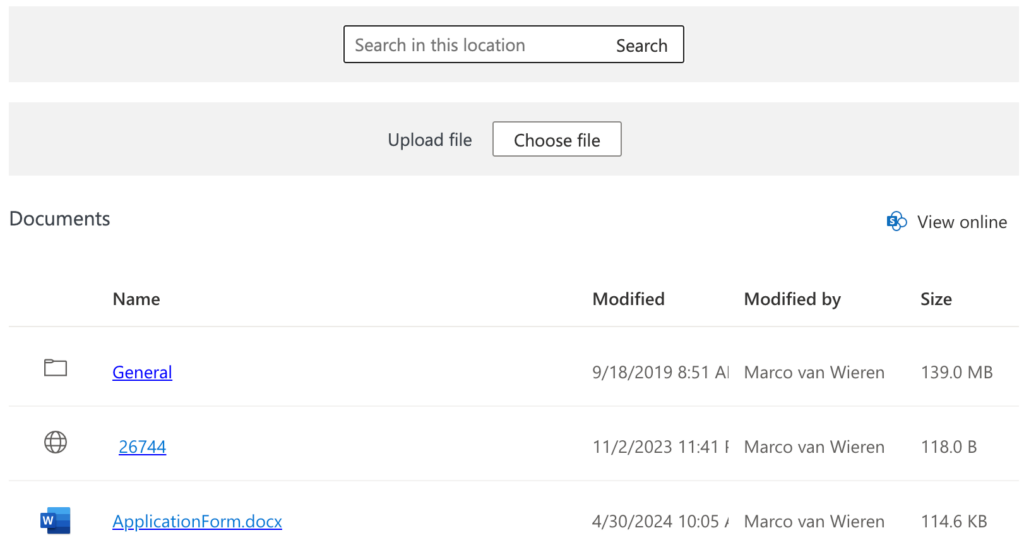
After completing this tutorial, you will be able to embed a SharePoint Library in WordPress. The screenshot below shows what the embedded SharePoint library in WordPress looks like.
Supported features
Embed a SharePoint library in WordPress
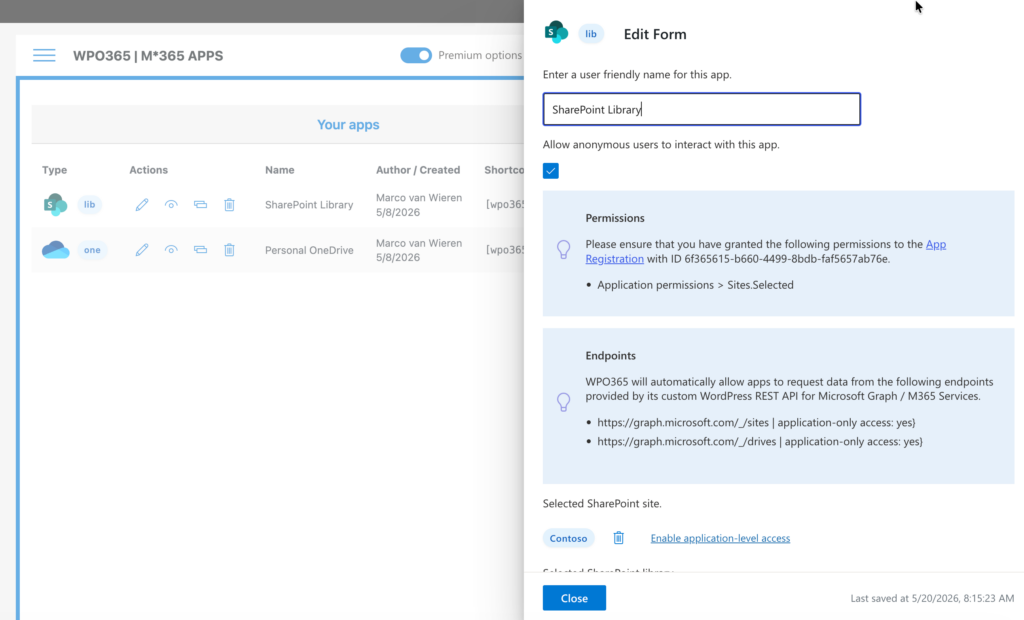
When you embed a SharePoint Library in WordPress is easy – Just create a new embed-app for the desired library, then add an app-shortcode to any WordPress post or page.
Folder navigation (premium)
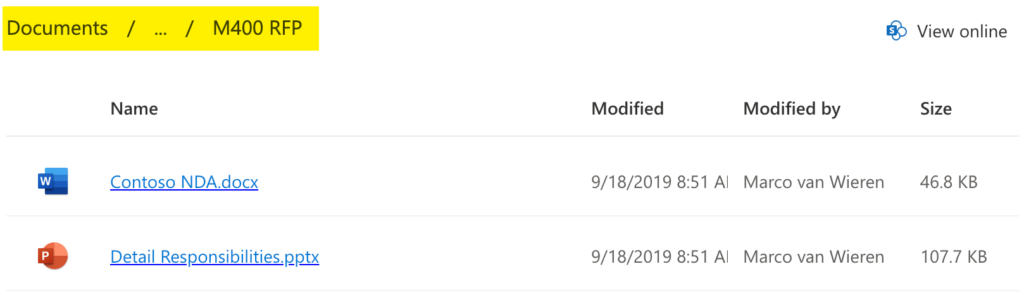
When you embed a SharePoint Library in WordPress, Users can navigate the SharePoint folder structure in the same way they would as in SharePoint: By clicking a folder icon to navigate into that folder and by using the breadcrumb navigation at the top to return to the previous level.
Optionally you can define a folder in the library as the starting point for surfacing files in SharePoint Online and OneDrive e.g. /contoso/general/HR.
Allow “anonymous” users (premium)
You can also embed a SharePoint Library in WordPress for users that did not sign in with Microsoft and with whom you did not explicitly shared the SharePoint Online library.
Search in the SharePoint library from WordPress (premium)
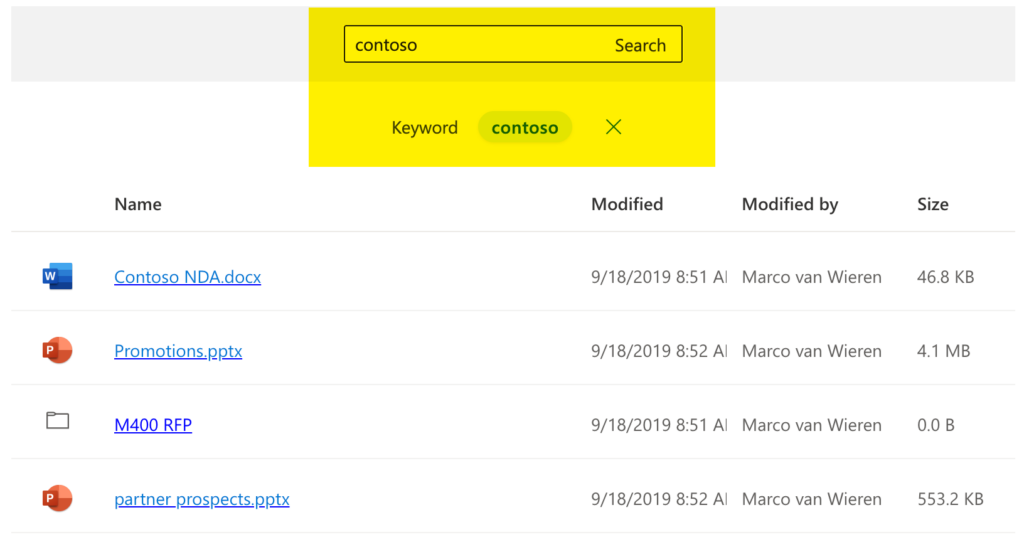
The embedded SharePoint library includes powerful, built-in search functionality that allows users to quickly find the documents they need without leaving your website. Whether used in a customer portal, intranet, or knowledge base, this feature ensures fast and intuitive access to files – even within large libraries – helping to improve productivity.
Upload files from WordPress to SharePoint (premium)
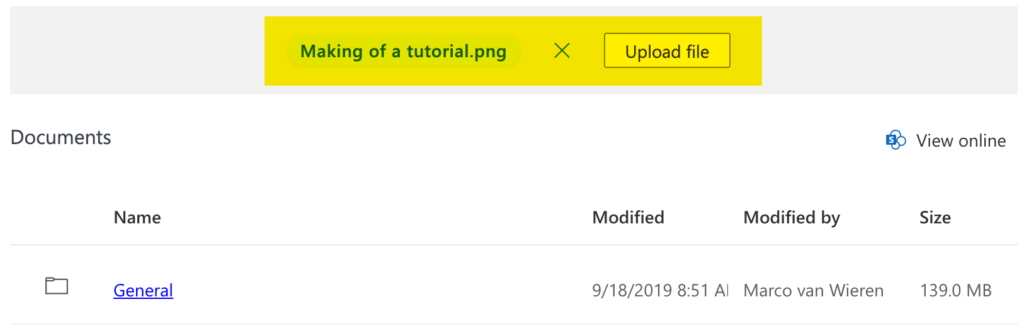
You can enable users to upload files directly from WordPress to SharePoint, streamlining content management and collaboration. Whether adding documents to a shared library or updating project files, users can securely transfer content in just a few clicks – without ever leaving your site.
Choosing and customizing your template
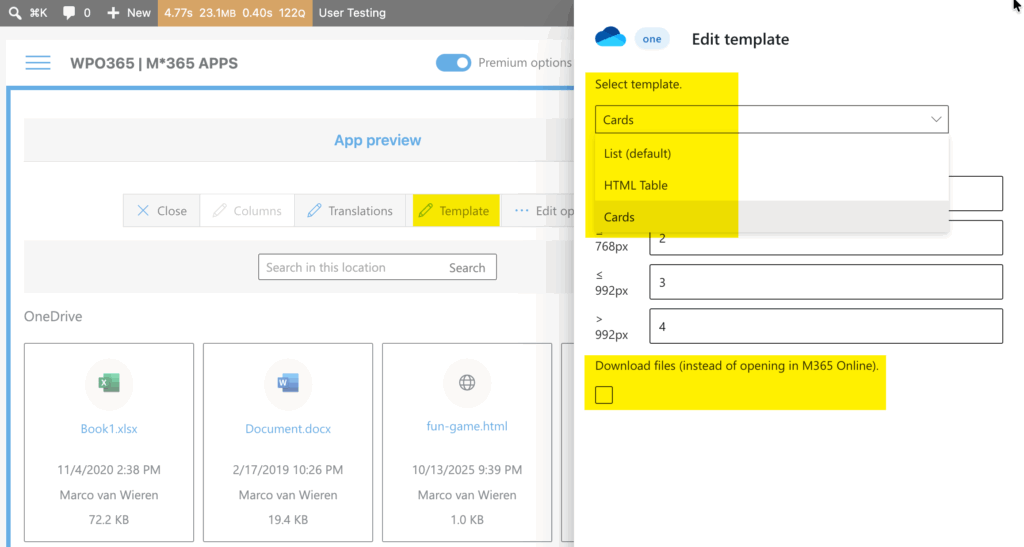
The embed app offers flexible template options, allowing users to choose the presentation style that best fits their site. Whether opting for the familiar Microsoft 365 look and feel, a fully customizable HTML layout styled with CSS, or visually rich Document Cards, you can tailor how files are displayed to match your brand and user experience.
Customize columns (premium)
You can edit the columns that the block should display and can connect each of those columns with a (custom) SharePoint list item field. You can configure how the column is rendered and also define custom CSS rules to optimize the user experience.
Translations
You can supply custom labels in your own language for the strings used in the app e.g. “This folder is empty”.
Test configuration
Before you add your embed-config to a page, you can test it and verify that you have entered a valid configuration.
Heads up: The screenshots and UI shown in this written tutorial are from an earlier version and do not yet reflect the updated interface introduced in release 41.0.
For the most accurate and current walkthrough, please refer to the new video tutorial below, which demonstrates the latest UI step by step.