

Video Walkthrough
Please follow along with the video walkthrough below, demonstrating how you can embed a SharePoint Library for your organization.
Enable Microsoft 365 Apps Integration
- Go to WP Admin > WPO365 > M*365 Apps.
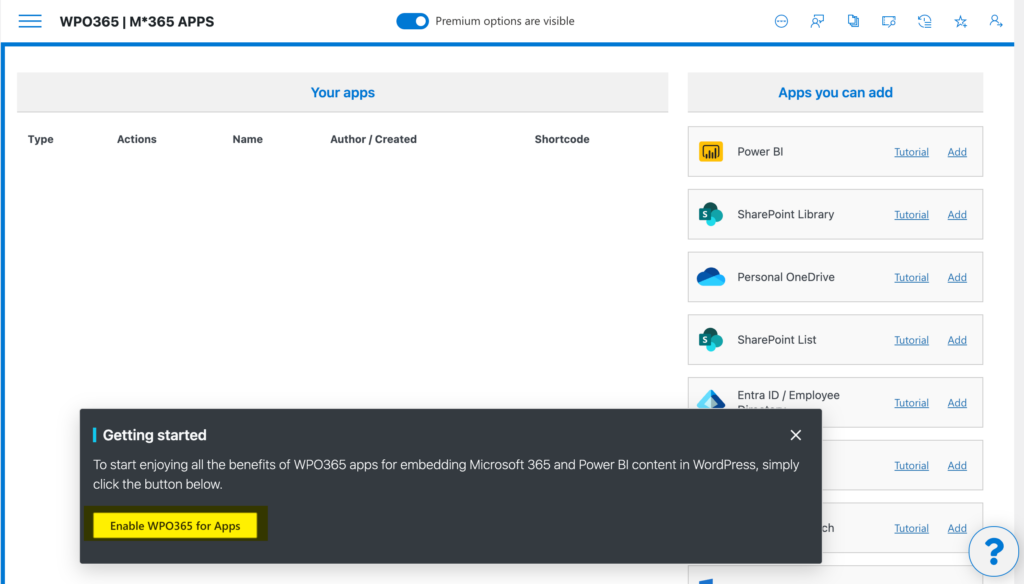
- On first visit, you’ll see a Getting started warning, informing you that functionality to support embedding Microsoft 365 services and Power is not yet enabled.
- Click Enable to activate this functionality.
Add a SharePoint Library App
- Since you wish to embed a SharePoint Library for your organization, select SharePoint Library from the list Apps you can add.
- Click Add.
- The configuration panel opens from one end of your screen.
- You may now see an error saying that Delegated permission Sites.Read.All is missing.
Fixing the Permission Issue
- Go to WPO365 → Single Sign‑On.
- Scroll down to the Application (Client) ID and click the link View in Entra Portal on that same line.
- The registered application in Entra Portal will now open.
- Perform the following steps to fix the permission issue:
- Go to API Permissions.
- Click Add Permission.
- Choose Microsoft Graph.
- Select Delegated permissions.
- Look up Sites.Read.All and click to Add it.
- Click Grant admin consent. If the button is disabled, ask a Global Administrator to do this on your behalf.
Sign In with SSO as Administrator
Since you updated the permissions for users that sign in with Microsoft, you – as an administrator – will need to refresh your own authorization – in other words your access token – or else you cannot continue with the configuration of the embed-app.
- Log out of WordPress.
- Sign back in using the (OpenID Connect) Sign in with Microsoft flow provided by the WPO365 | LOGIN plugin.
- This allows the plugin to obtain required delegated access on your behalf that is needed when you configure the SharePoint Library embed-app.
Configure the SharePoint Library App
- Return to WP Admin > WPO365 > M*365 Apps.
- Open the configuration panel of your app, by clicking the pencil icon for that app.
- Now you should no longer receive an error saying that Delegated permission Sites.Read.All is missing.
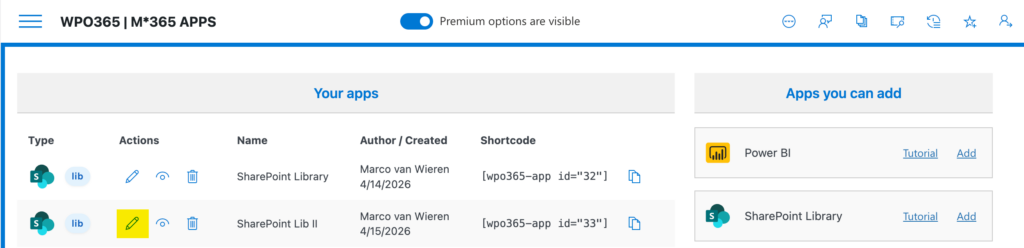

Please note that some premium options may be disabled. To unlock premium options, please purchase, install and activate either the WPO365 | APPS or WPO365 | INTEGRATE plugin.
Basic Configuration
- Give the app a friendly name for example “Contoso Library”.
- Note that changes to the configuration are automatically saved. When auto-saving is active, the Close button will be briefly greyed out, a spinner is shown next to it and once finished the last-updated timestamp will be updated.
Select the SharePoint Site and Library
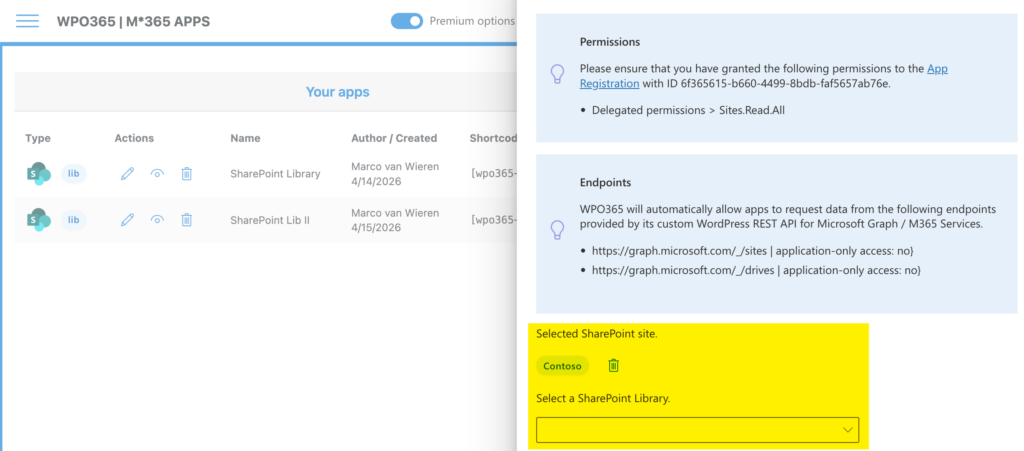
- Search for the SharePoint site where the library / list is located, by entering the site’s exact title e.g. Contoso.
- Next, a dropdown list with results will be updated. Use it to select the site – for example – Contoso.
- After you selected the site, a new dropdown list with libraries found in the selected site collection will appear. Use it to select the library – for example – Documents.
Optionally hide folders
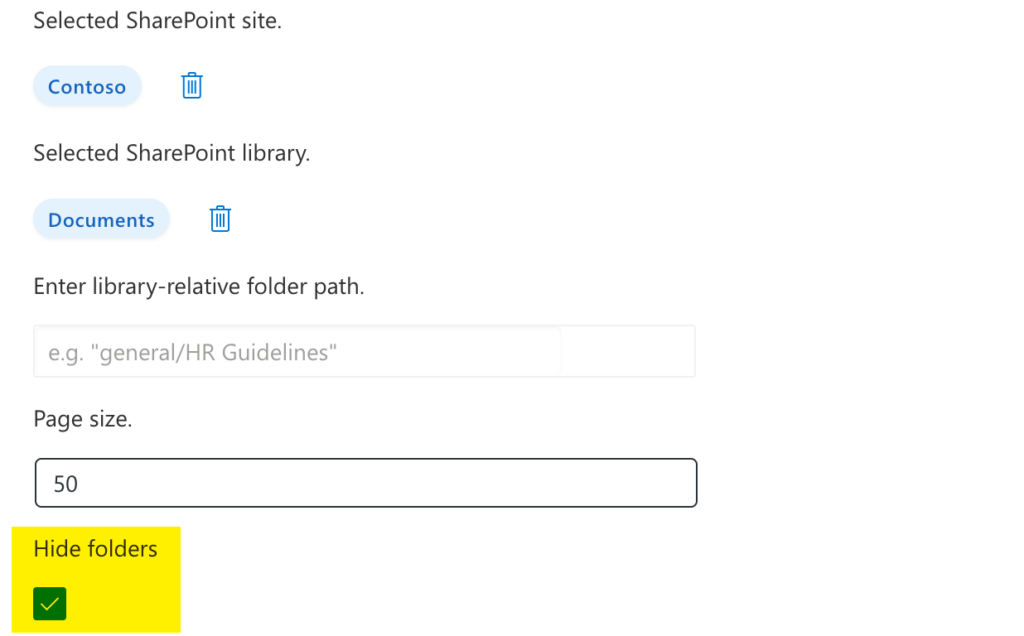
You can optionally configure the app to always hide folders. This is especially useful when using the free version included with the WPO365 | LOGIN plugin, as folder and breadcrumb navigation are only available in the premium edition.
Preview the embed-app
- You finished the basic configuration to embed a SharePoint Library for your organization in WordPress.
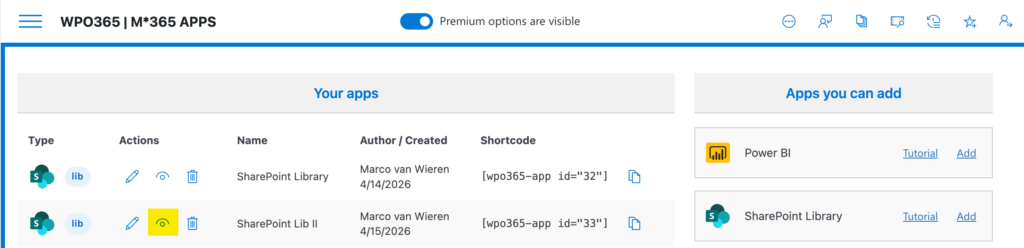
- To preview the app, click the preview icon.
Embed the Library in WordPress
- To embed the library in WordPress, close the configuration panel.
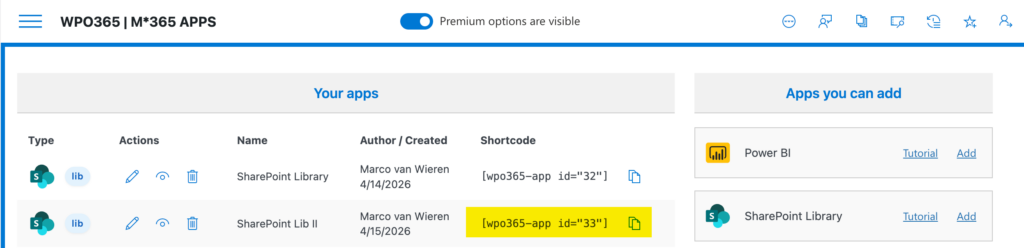
- Copy the generated shortcode.
- Create a new post or page.
- Insert a Shortcode block.
- Paste the shortcode.
- Publish the page.
Verify the Result
- Open the page you just published.
- Verify that the SharePoint library loads correctly and that folders and documents are visible.