

Video Walkthrough
Please follow along with the video walkthrough below, demonstrating how you can embed a SharePoint Library for your customers (without User Sign-in).
Enable Anonymous Interaction
When you click to add a new SharePoint Library app, you will be asked for who you are embedding the library. Click For customers to enable anonymous users to view the content of the embedded library, as shown below.
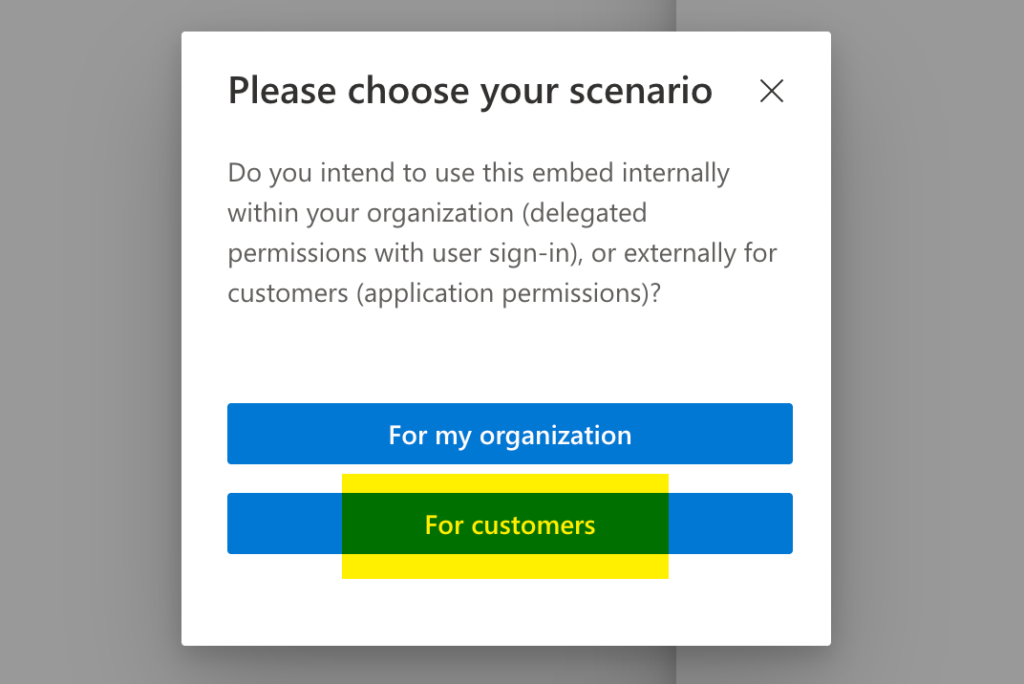
Click For customers will configure the app so it won’t require a user to sign in with Microsoft.
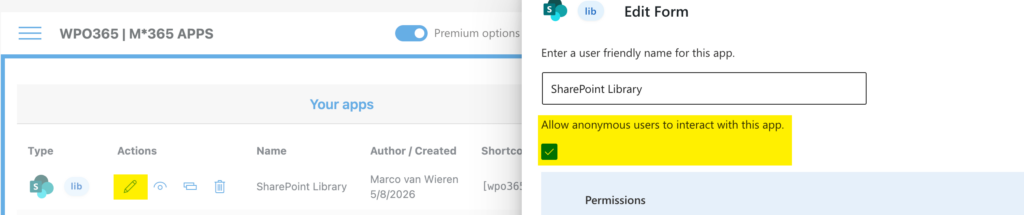
You can also manually select this scenario, when you perform the following steps.
- Click the pencil to start editing the app configuration.
- Enable Allow anonymous users to interact with this app.
Required Entra Permissions
As soon as you enabled the option Allow anonymous users to interact with this app and the configuration is saved, you may receive an error informing you that required permissions are missing. To fix this, perform the following steps.
- Open the plugin’s Integration configuration page and scroll to the setting (App-only) Application (Client) ID.
- Click the link View in Entra Portal to open the registered application in Entra ID.
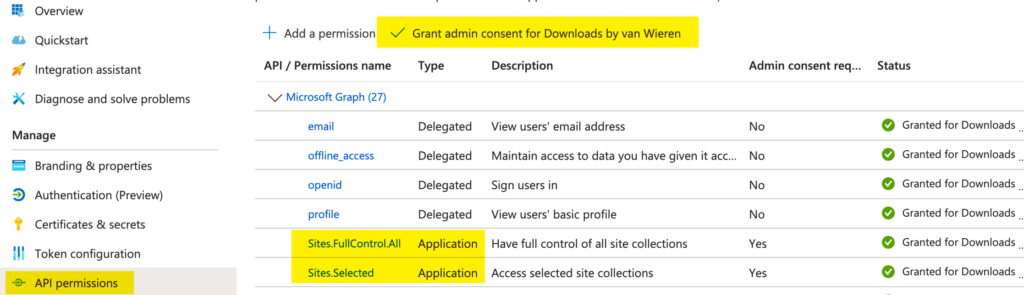
- Continue to the API Permissions page and add the following application permissions:
- Microsoft Graph > Application permissions > Sites.Selected
- Microsoft Graph > Application permissions > Sites.FullControl.All
- After you added both permissions, grant admin consent.

Be aware that the Microsoft Graph permission Sites.FullControl.All is required only temporarily to enable application access for the targeted site collection. Once configuration is complete – after the next step Enable Site Access, it should be promptly removed.
Select a SharePoint Library
Next you need to select the SharePoint Library and optionally a folder in that library, that will be the source for the embedded app in WordPress.
If you signed in with OpenID Connect based SSO yourself and if the administrator has granted Microsoft Graph > Delegated Permissions > Sites.Read.All Permissions, then you can use the Library Picker to select the source.
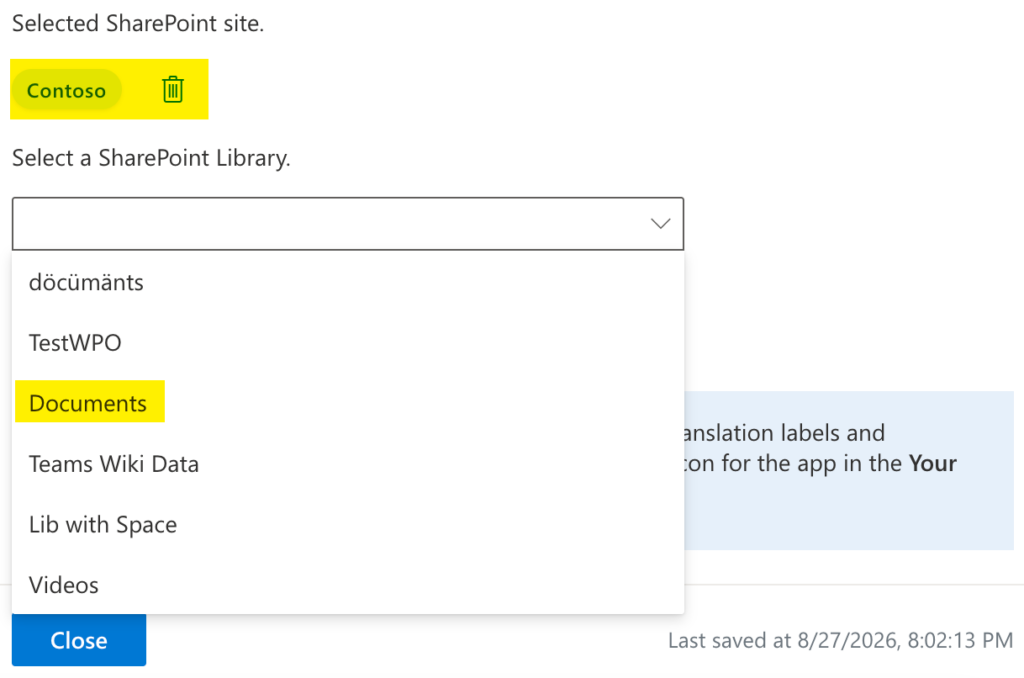
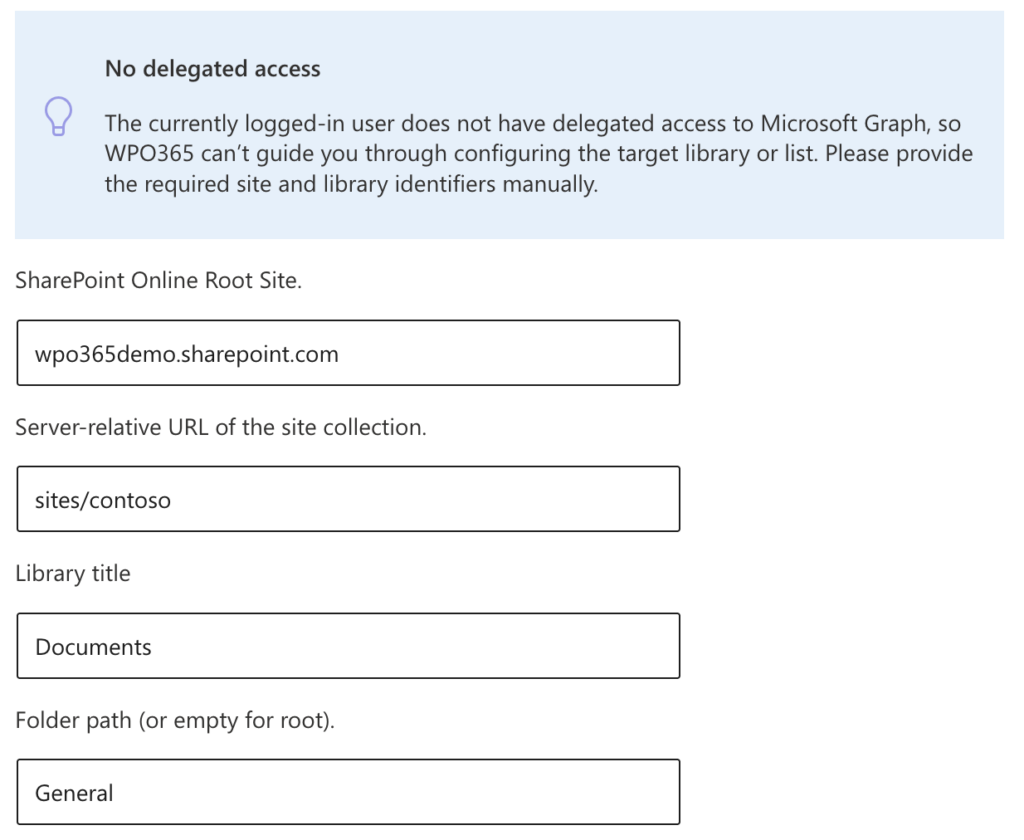
Alternatively, if you do not have delegated access, you can enter the required site and library identifiers manually – as shown below – by entering the following details.
- SharePoint Online Root Site e.g. {your tenant}.sharepoint.com.
- Server-relative URL of the site collection e.g. sites/contoso.
- Library title e.g. Documents.
- Optionally a Folder path e.g. General/HR.
Enable Site Access

- Back in WordPress, click the link-button Enable application-level access on the same line as the selected SharePoint site. This grants app‑only access.
- After you clicked the link-button, a small OK icon should be visible next to it. Note that this OK icon won’t show when you reload the page.
- Now remove the API Permission Sites.FullControl.All again.
Adjust WordPress Authentication Requirements
After you configured the app to allow users access to the embedded library without requiring Microsoft authentication, you may need to update the access-level for the REST API that the app is using.
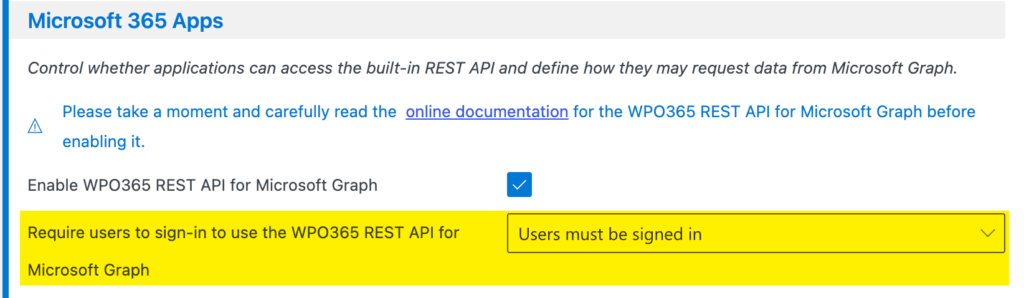
- Open the plugin’s Integration configuration page and locate the setting Require users to sign-in to use the WPO365 REST API for Microsoft Graph.
- Change it to Allow anonymous access or Users must be signed in. Note that the option Users must be signed in does not imply that users must sign in with Microsoft.
Always Download Files
By default, items in the embedded SharePoint Library are opened in Microsoft 365. To ensure that files are downloaded instead, follow the steps below.
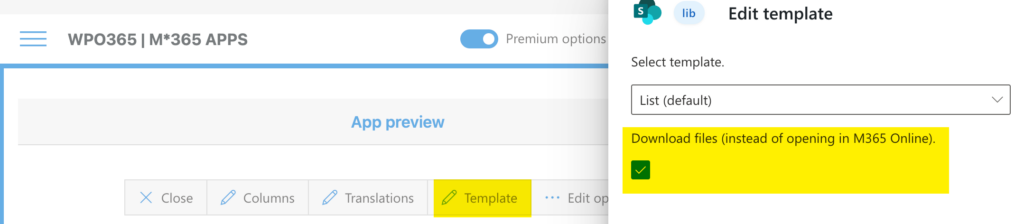
- Open the preview of the app.
- Click to update the template settings of the app.
- Check the option Download files (instead of opening in M365 Online).
At this point, you have completed the steps required to update the app configuration so that users without a Microsoft account can access the SharePoint Library.
For completeness, the following section explains the manual steps needed to configure application access. You can use this as a reference or for troubleshooting, but you do not need to perform these steps if the guided setup has worked as expected.
Manual Configuration (Optional – For Reference)
To grant permission for WordPress to read the content of a given site collection, you must now grant Read permissions to the application that is represented by the App registration in Microsoft Entra ID / Azure AD. In combination with the API permission Sites.Selected (see to Update API Permissions for steps to add that permission) this will result in only those sites that have had Read permission granted, being accessible from WordPress.
To grant Read permission to an App registration / application with display name “My WordPress based Intranet” and Application (Client) ID 50b593ab-6567-4bc0-9fba-xxxxxxxxxxx, you must execute the following Microsoft Graph query:
POST https://graph.microsoft.com/beta/sites/{siteId}/permissions
Content-Type: application/json
{
    "roles": ["read"],
    "grantedToIdentities": [{
            "application": {
                "id": "50b593ab-6567-4bc0-9fba-xxxxxxxxxxx",
                "displayName": "My WordPress based Intranet"
            }
        }
    ]
}
In the previous example you must replace {siteId} with the full ID of the SharePoint site collection for which you want to grant WordPress Read permission for. To find the site ID for a SharePoint site with hostname wpo365demo.sharepoint.com and a server relative path / managed path of sites/contoso you must execute the following Microsoft Graph query:
GET https://graph.microsoft.com/beta/sites/wpo365demo.sharepoint.com:/sites/contoso
Content-Type: application/json
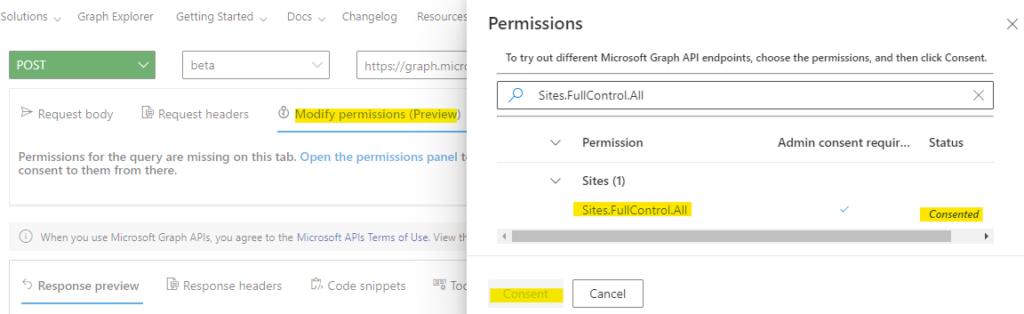
To make this and the previous call you can use Microsoft’s Graph Explorer tool as shown below.
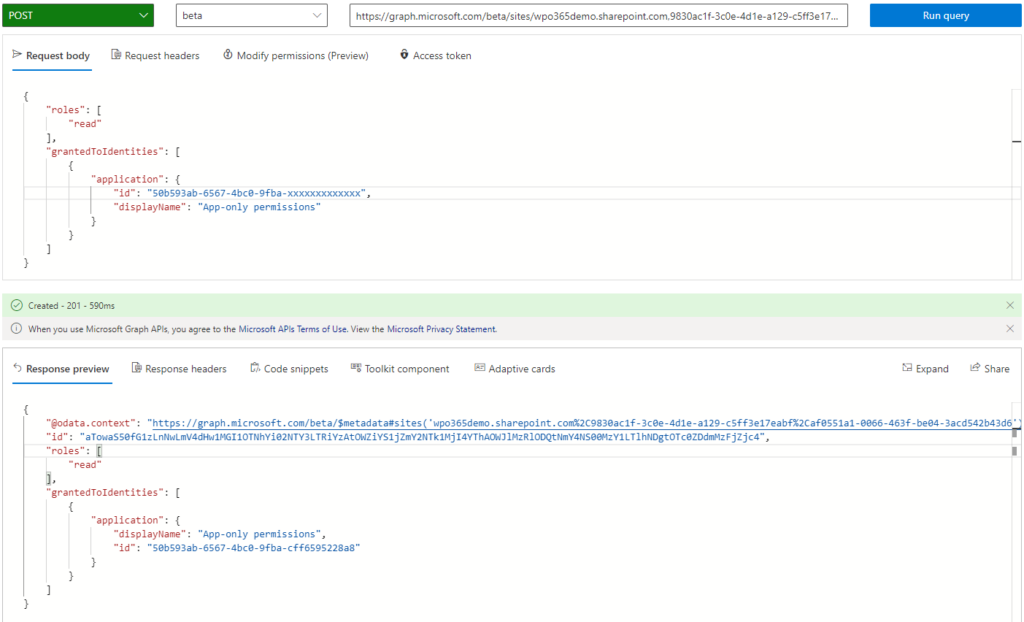
Please note that when using this tool you may need to Modify permissions and add and consent to Sites.FullControl.All permission to be able to make the call to create the Read permission.
With this configuration in place, any website visitor is now able to view SharePoint documents in this specific SharePoint site collection.
With the default column configuration, web visitors are not able to download documents from SharePoint. Please consult the paragraph Edit columns for anonymous access for steps how to update the column definition, so that your visitors are able to download documents from SharePoint.