

Video Walkthrough
Please follow along with the video walkthrough below, demonstrating how to send a test email when you finished the configuration to send WordPress emails from any Microsoft 365 (Shared) Mailbox using Microsoft Graph.
Testing the Email Configuration
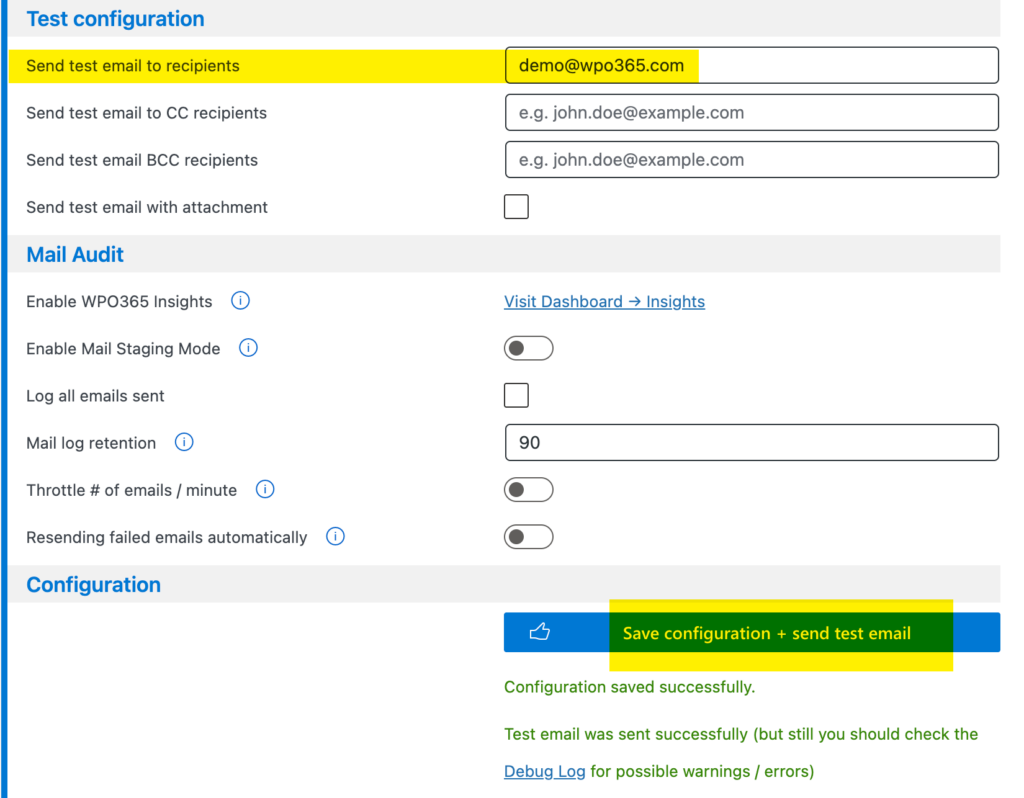
- Scroll down to the Test configuration section.
- Enter a test recipient, for example [email protected].
- Before sending the test email, review these optional settings:
- Enable Send emails as HTML (alternatively, you could choose Plain text).
- Enable Save sent items so emails are stored in the sender’s Sent Items folder.
- Scroll to the bottom, click Save configuration + Send test email.
Verifying the Result
- Confirm the success message indicating that the test email was sent successfully.
- Optionally, review the Debug Log:
- Open the Debug page from the plugin menu.
- Check for warnings or errors.
- Ignore older warnings that are unrelated to this test email.
Confirming Mail Delivery
- Open the recipient’s mailbox, for example using Outlook on the web (outlook.office.com).
- Verify that the email was received from the sender account.
- Open the sender’s mailbox, for example using Outlook on the web.
- Check the Sent Items folder to confirm the test email appears there.
Final Confirmation and Insights
- Confirm that your WordPress site can successfully send emails using Microsoft Graph with the authorized account.
- If you enabled WPO365 Insights, then now is a good time to data it collects by opening the page from the WPO365 Dashboard.
- Scroll to the Mail section to verify that email activity is being tracked.