

Video Walkthrough
Please follow along with the video walkthrough below, demonstrating how you can enable file-upload to SharePoint from WordPress for the embed.
Grant upload permissions
The following instructions assume that you are embedding for your organization.
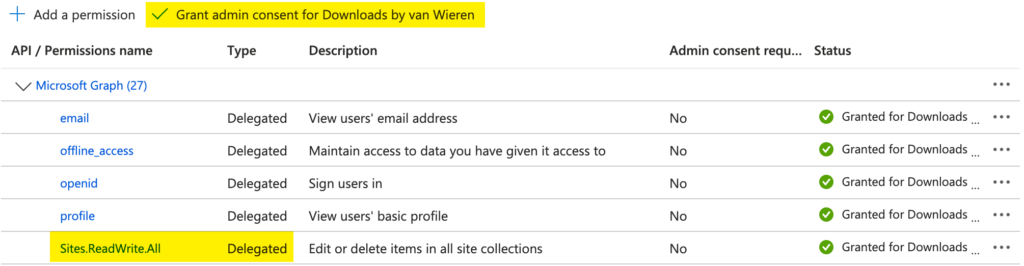
- Navigate to the registered application in Entra ID, for example from the link View in Entra Portal that you’ll find on the plugin’s Single Sign-on on the same line as the Application (Client) ID.
- Continue to the registered application’s API Permissions page.
- Add Microsoft Graph > Delegated Permissions > Sites.ReadWrite.All.
- Grant admin consent. If this link-button is greyed out, then you must ask a Global Administrator to grant their consent instead.
Enable file-upload to SharePoint from WordPress
To enable file-upload for the SharePoint Library currently embedded in WordPress is straightforward. Just perform the following steps.
- Return to the M*365 Apps landing page.
- Select the embed-app for which you want to enable search.
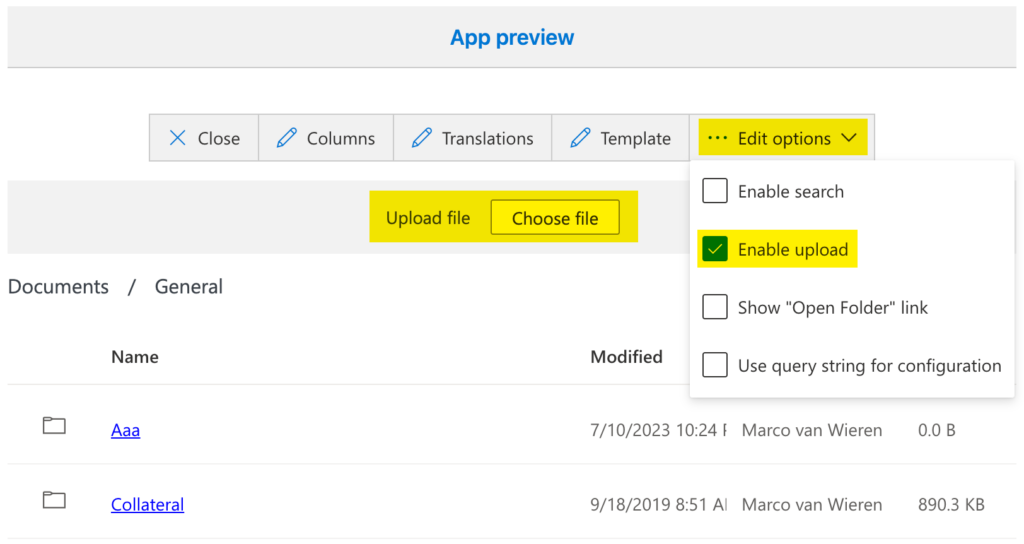
- Click the Preview icon to open the app in preview mode.
- From the Edit options click Enable upload.
- Verify that the app preview is reloaded and the upload element is now visible.