

Video Walkthrough
Please follow along with the video walkthrough below, demonstrating how you can create an Application Client Secret, when adding Microsoft (Entra ID) login to WordPress using the OpenID Connect protocol.
Create a client secret in Microsoft Entra
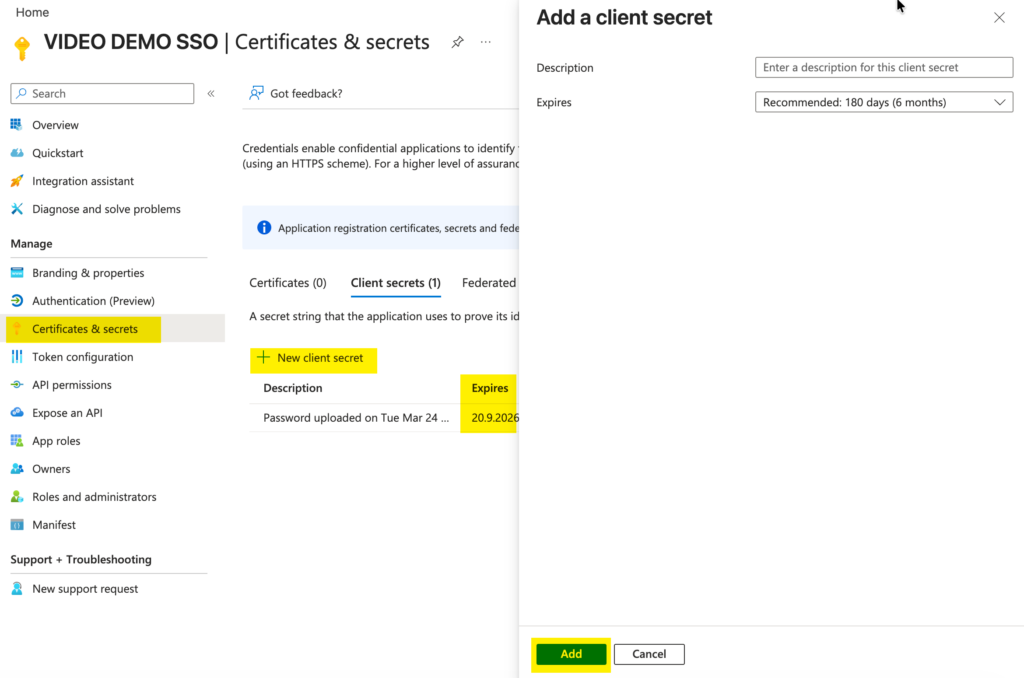
- In the Microsoft Entra admin center, open your App registration.
- Alternatively can you also click the link View in Entra Portal that you’ll find on the plugin’s Single Sign-on configuration page on the same line as the Application (Client) ID field.
- Navigate to Certificates & secrets.
- In the Client secrets section, click New client secret.
- (Optional) Enter a description for the secret.
- Choose an expiration period (for example 180 days).
- Click Add to create the secret.
Copy and store the secret value
- Immediately copy the secret Value.
- Do not copy the Secret ID – It is not usable for authentication.
- Store the secret securely e.g. in a Password Manager.
- Once you leave this page, the secret value cannot be retrieved again.
Configure the secret in WPO365
- Return to the plugin’s Single Sign-On configuration page.
- Paste the application (client) secret value into the corresponding field.
Keep track of the expiration date
- Note the expiration date of the secret.
- When the secret expires:
- It can no longer be used for authentication.
- Single Sign-On (SSO) and other integrations will stop working.
- Before the expiration date you must:
- Return to the App Registration’s Certificates & secrets page.
- Create a new client secret.
- Copy its value.
- Navigate back to the plugin’s Single Sign-On configuration page.
- Paste the application (client) secret value into the corresponding field.
Save configuration
- Finally, scroll down to the end of the page and save the updated configuration.