

After completing this tutorial, you will be able to embed an Outlook / Exchange Calendar in WordPress.
Supported features
Embed an Outlook / Exchange Calendar in WordPress
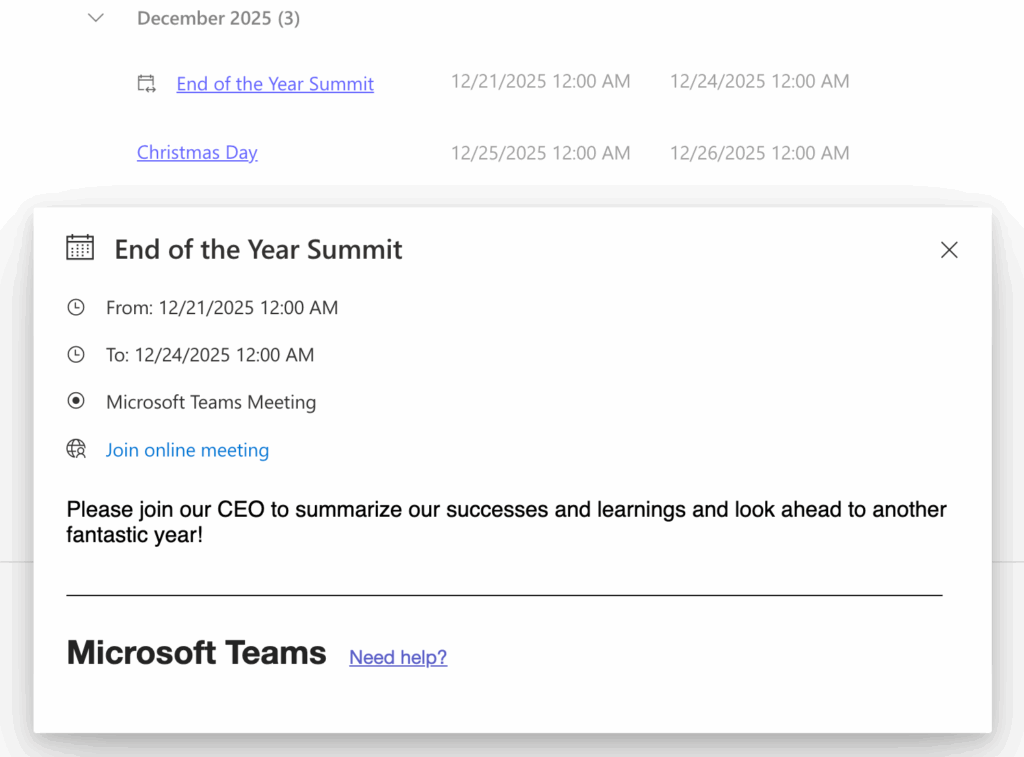
With the help of WPO365 you can configure embed an Outlook / Exchange Calendar in WordPress, in the form of an client-side JavaScript app that will show events from a specific Exchange Online Calendar in WordPress. All you need to do is to create an embed-app using the built-in M*365 Apps framework and add a shortcode to a page. This will result in a list showing events from a specific source, optionally grouped – for example by week or month. Multi-day events are easily identifiable by a dedicated icon, as shown in the first screenshot of this article.
View event details
Each event in the list is clickable and opens a dialog displaying details such as title, start and end time, location, description, and a link to join an online meeting, as shown in the first screenshot on this page.
Calendar source
Select one of the following options as the source for the embedded calendar:
- Logged-in user Each SSO user will see their own calendar.
- Shared Calendar Each SSO user can view events from a shared calendar, as long as that calendar is shared with them.
- Specific User Each SSO user can view events from a specific user’s default calendar, as long as the user has been granted delegated access to it.
- Specific Group Each SSO user can view events from a specific Microsoft 365 Group’s calendar, as long as the user is a member of that group.
Customize calendar grouping
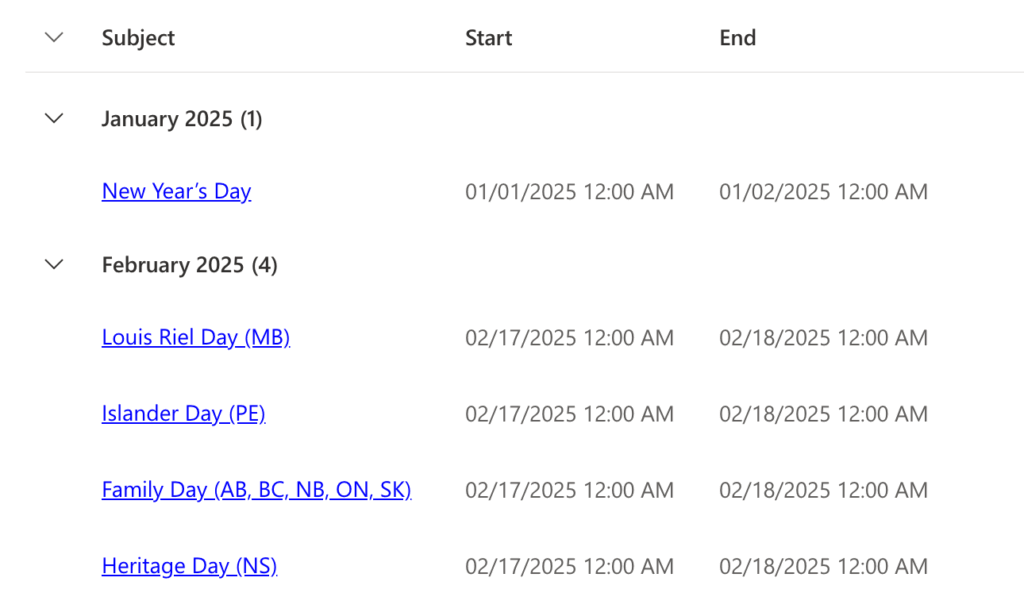
You can change the Calendar grouping. By default, calendar events are grouped by month. The alternative options are By day, By week and By year.
Customize date range
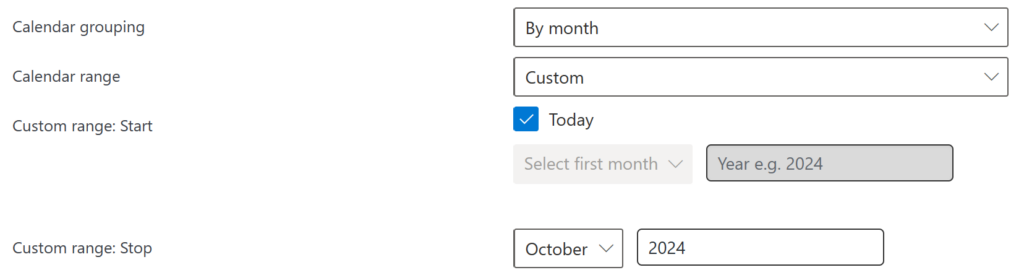
You can change the date range for which events will be fetched. By default, calendar events for the current year between Jan. 1st and Dec. 31st will be fetched. The alternative options are Today, This week, This month, This year and Custom. When you select Custom, you can enter your own start and end date. As start date, you can also check Today to ensure that events that occurred in the past are not shown.
Enable calendar date picker
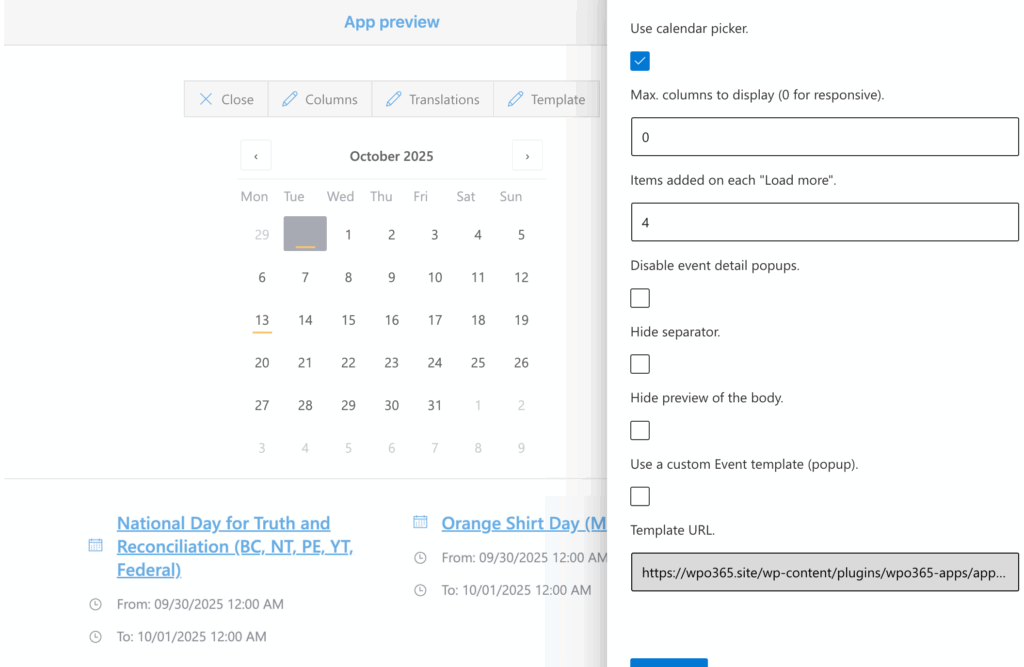
To make it easy for users to navigate the calendar, you can enable a date picker. When activated, the date picker appears above the events, which are then displayed as individual cards. Selecting a date updates the list to show events starting from that point. The layout and wrapping of the event cards are fully responsive and adapt to the available screen width.
Customize columns
You can edit the columns that the app should display and you can connect each column to a property of an event. Also, you can configure how the column is rendered and also define custom CSS rules to optimize the user experience.
Translations
You can supply custom labels in your own language for the strings used in the app e.g. “There are no events to show”.
Preview embedded app
Before you add your shortcode to a page, you can preview the app, test it and verify that you have entered a valid configuration.

Plugins with these features
The tutorial will demonstrate how this can be achieved using the latest version of the Calendar embed-app that is installed as part of the WPO365 | LOGIN plugin. Advanced premium options, such as grouping of events e.g. by week or month, defining a date range, enabling a date picker, customizing columns and the display template will also be addressed, but require the WPO365 | APPS or WPO365 | INTEGRATE plugin.