

First impressions matter. This guide shows you how to hide wp-login.php and configure a custom login experience for your WordPress website with WPO365. Instead of sending users to WordPress’s generic login page, you can create a dedicated login route such as https://your-website.com/wpo/login, present visitors with a fully branded sign-in experience, and optionally hide the default WordPress login form from most users.
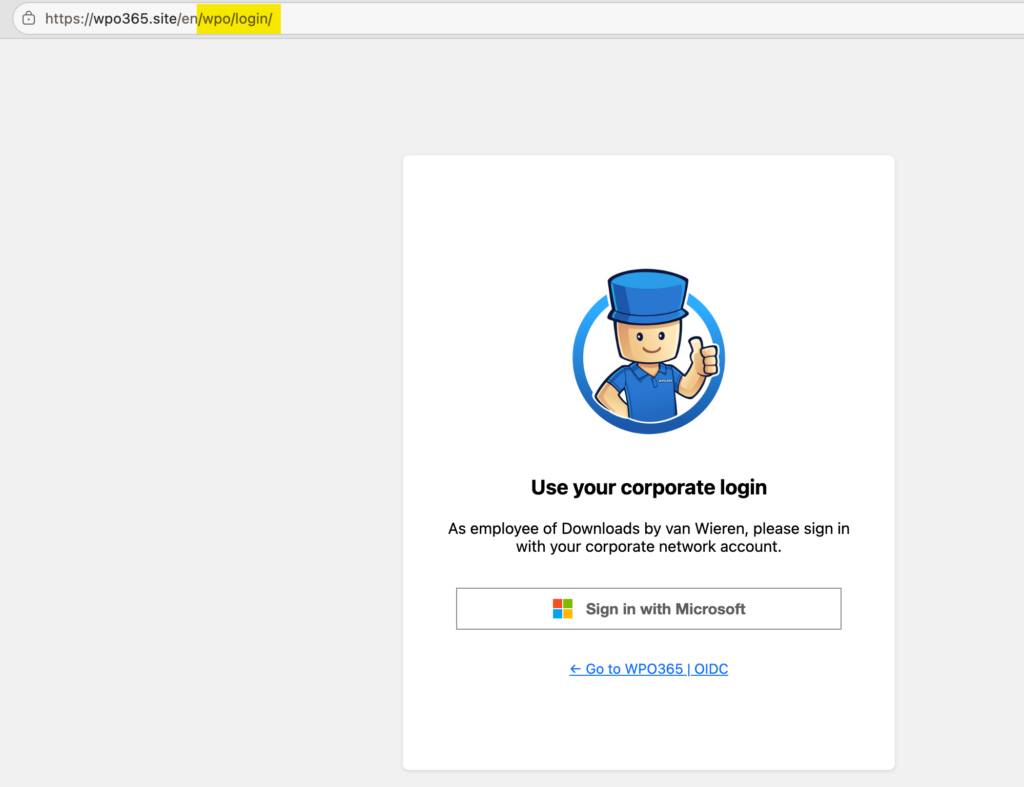
This capability is particularly useful for organizations that rely exclusively on Microsoft 365 accounts and want to encourage or even enforce Microsoft sign-in as the preferred authentication method. By hiding the standard WordPress username and password form, administrators can simplify the sign-in experience and reduce confusion for users. This feature is distinct from WPO365’s automatic sign-in redirection options, which can immediately redirect users to Microsoft when they visit a login URL.
In addition to creating a custom login route, administrators have extensive control over the appearance and behavior of the sign-in experience. Choose between one-column and two-column layouts, upload a custom background image and logo, customize text and translations, and apply your own CSS styling to ensure the login page seamlessly matches your organization’s branding.
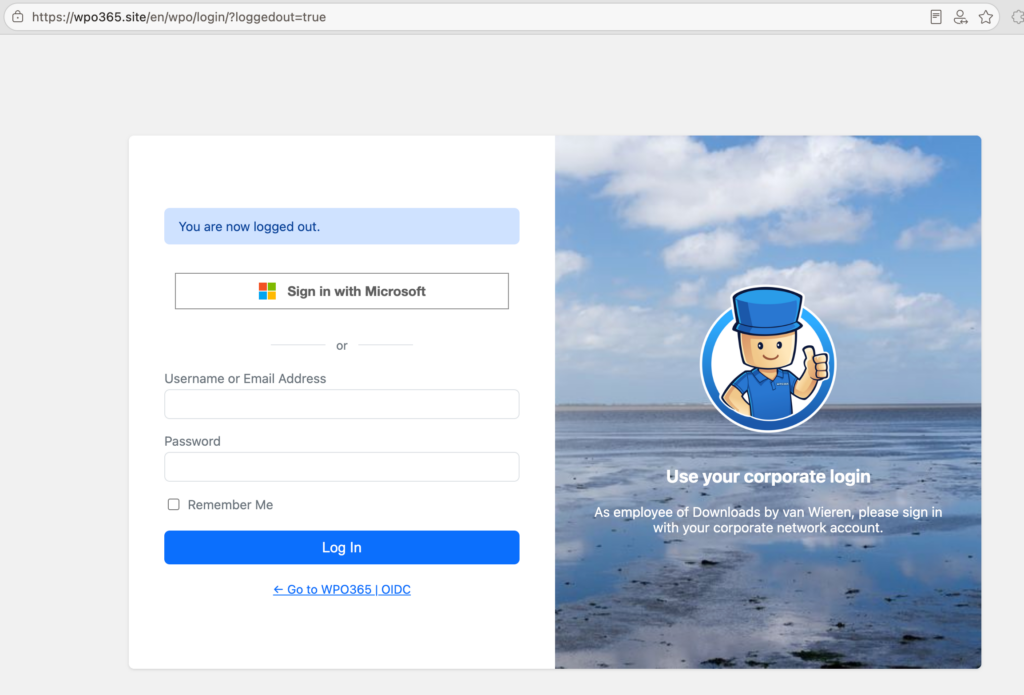
This guide introduces three related features available on the plugin’s Login / Logout page (WordPress Admin > WPO365 > Login / Logout):
- Custom Login Route Create a dedicated login URL such as /wpo/login and optionally prevent visitors from accessing the default wp-login.php login form.
- Custom Login Page Design a branded login experience that matches the look and feel of your website and organization.
- Custom Logged Out Page Control what users see after signing out or when a Microsoft sign-in attempt cannot be completed successfully.
Together, these features allow you to replace WordPress’s default authentication experience with a professional, Microsoft 365-focused sign-in journey that feels like a natural extension of your website.

Before you start: these options are part of WPO365’s premium extensions (for example ESSENTIALS, PROFESSIONAL or INTEGRATE). If you don’t see them on your Login / Logout page, check that a compatible premium plugin is active and that your license is valid.