


Before previewing the app ensure that you are signed into WordPress using your Microsoft account through WPO365 Single Sign-on and verify that your Microsoft account has a valid Copilot Add-on License assigned.
Preview the Copilot App
Perform the steps below to preview the app.
- Close the configuration editor.
- Click the Preview icon for the Copilot app in the Your apps section.
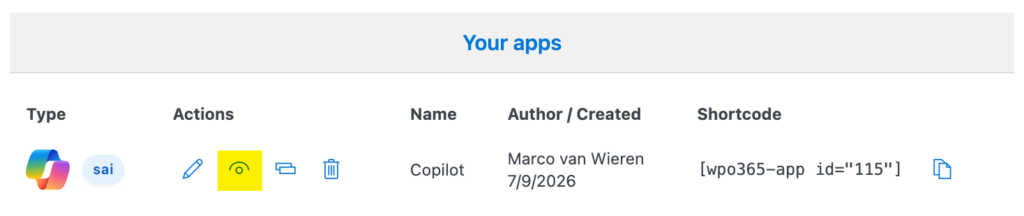
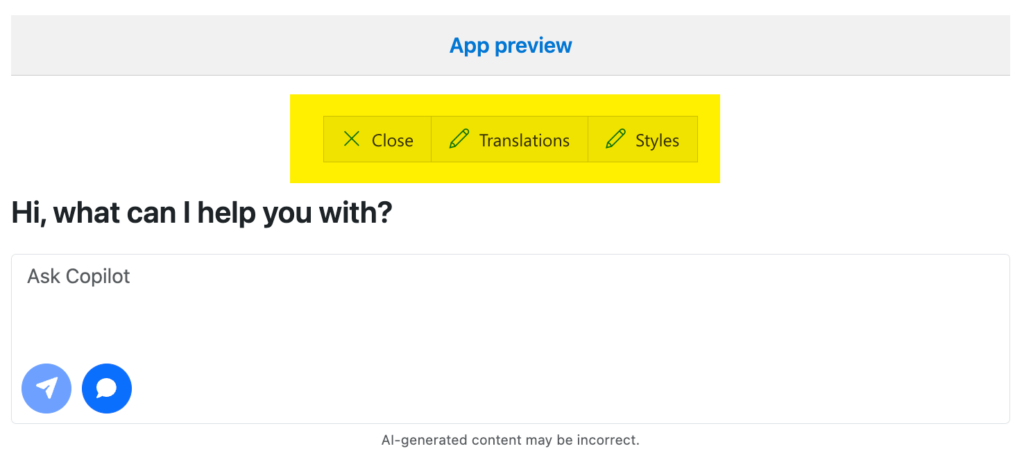
- The Copilot chat interface replaces the Your apps list.
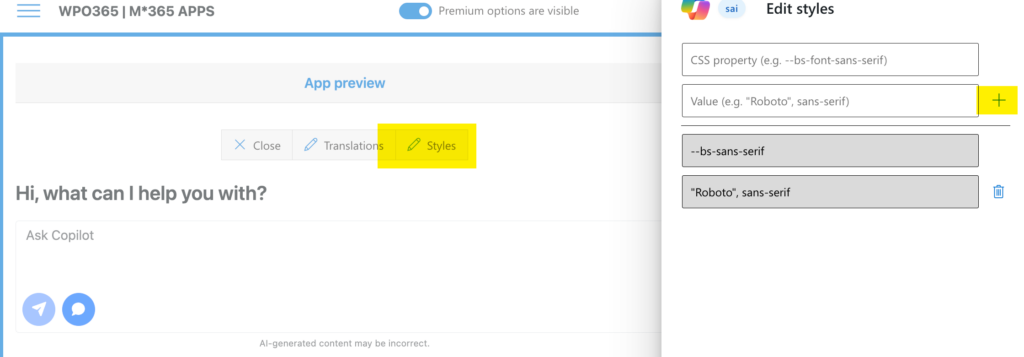
- Additional buttons appear above the preview to:
- Close the preview.
- Edit translations.
- Update styles.
Test the Copilot Chat Experience
The preview allows you to test the complete chat experience before embedding the app on your website.
- Enter a prompt in the chat input field.
- Click the Send button (envelope icon).
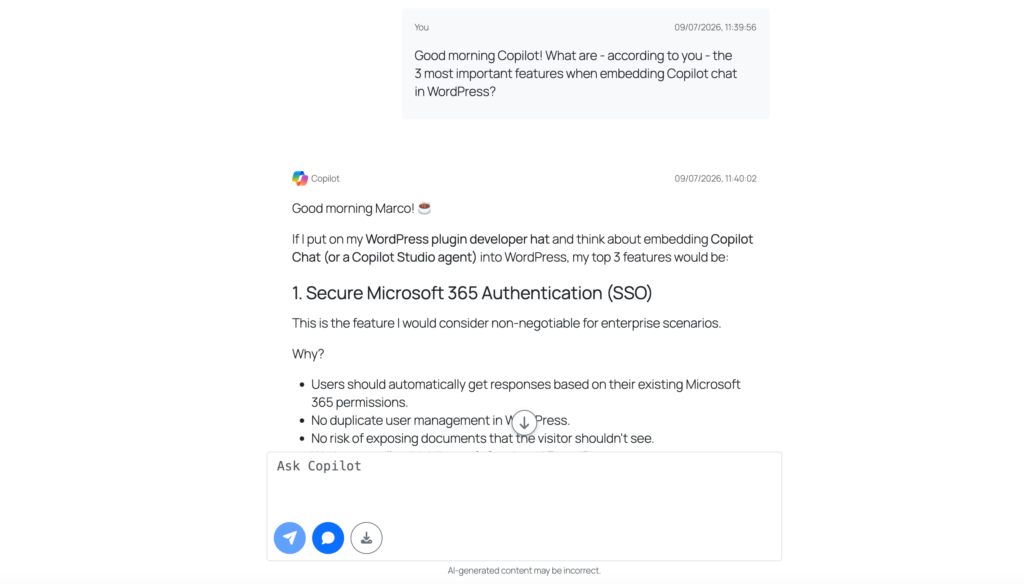
- Your prompt is immediately added to the chat history.
- A pulsing indicator appears while the app waits for a response from Copilot.
- Copilot’s response is displayed beneath your prompt when it becomes available.
- If an error occurs, a notification is displayed near the bottom of the screen.
Available Features
The Copilot app includes the following features:
- Start a new chat conversation.
- Download the complete conversation as a Markdown file.
- Copy a Copilot response to the clipboard.
- Keep the chat input visible using a sticky footer.
- View attributions and source references in a side panel.
- Automatically scroll to the beginning of new responses.
- Quickly scroll to the end of the conversation.
Customize Translations
You can customize all user-facing labels used by the Copilot app.
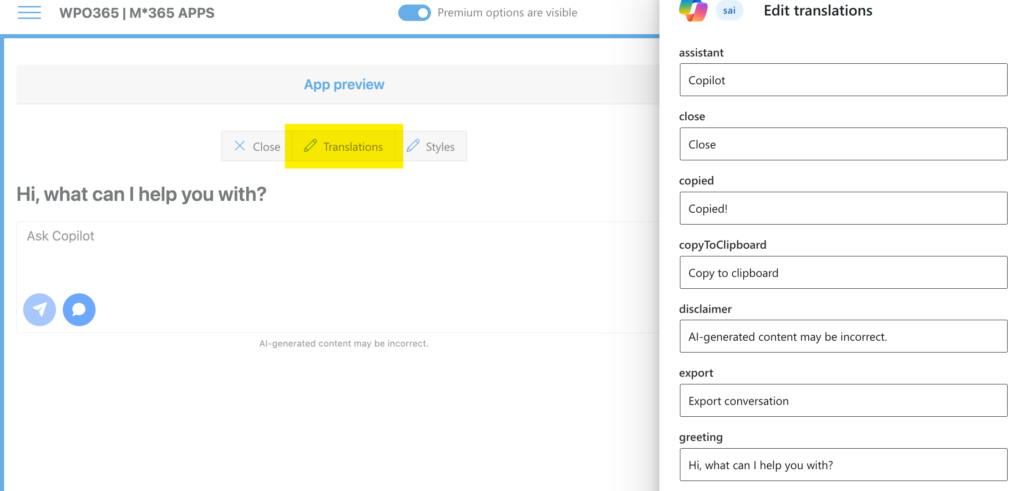
- Open the preview.
- Click Translations.
- A translation editor opens in a panel on the far right side of the screen.
- Select a label from the list of translatable strings.
- Update the corresponding text in the editor below.
- Changes are automatically saved.
Customize Styles
The Copilot app uses Bootstrap and supports customization through CSS variables.
- Open the preview.
- Click Styles.
- Enter any supported CSS variable and value to override the default appearance.
- Always click “+” to add the new style variable to the list of customizations.
For example, to use the Roboto font family:
Property –bs-font-sans-serif
Value “Roboto”, sans-serif
You can use this approach to customize fonts, colors, spacing, border radius, and other Bootstrap design variables.
Embed the Copilot App
Follow the instructions below to embed the Copilot app in WordPress.
- Click Close to exit the preview.
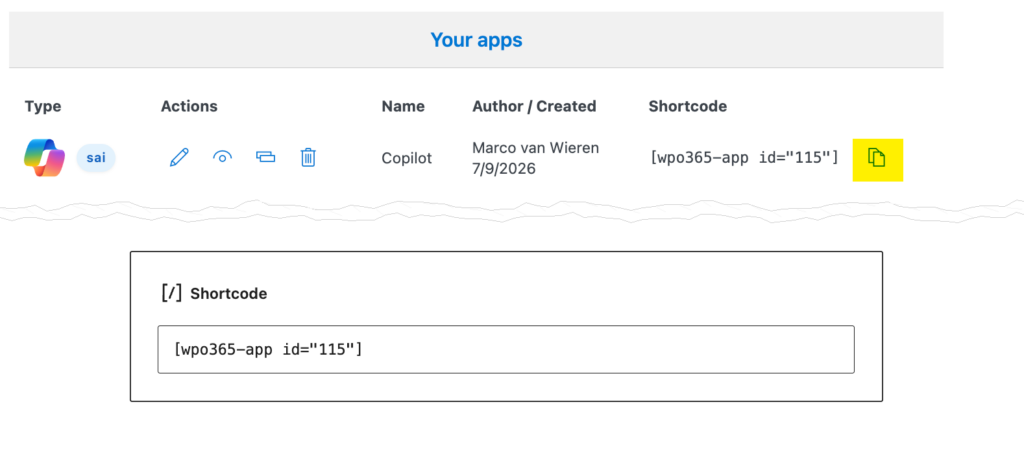
- Copy the shortcode by clicking the Copy icon for the selected app.
- Open the WordPress page or post where you want to display Copilot.
- Paste the shortcode into the content.
- Save or publish the page.
When users visit the page and sign in with their Microsoft account, they can immediately start chatting with Copilot directly from your WordPress website.