Perform the steps below to add and configure the Copilot app for WordPress.
- Navigate to WP Admin > WPO365 > M365 Apps.
- If WPO365 has not yet been enabled for embedded Microsoft 365 applications, a notification is shown at the bottom of the screen.
- Click Enable WPO365 for Apps to register the required WordPress REST API endpoints.
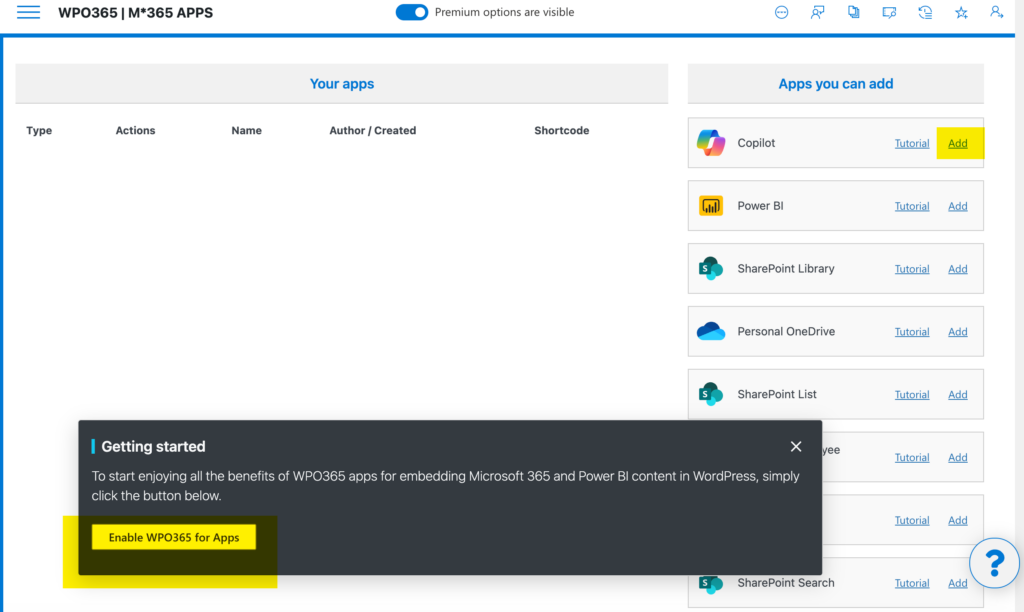
- Locate the Apps you can add section.
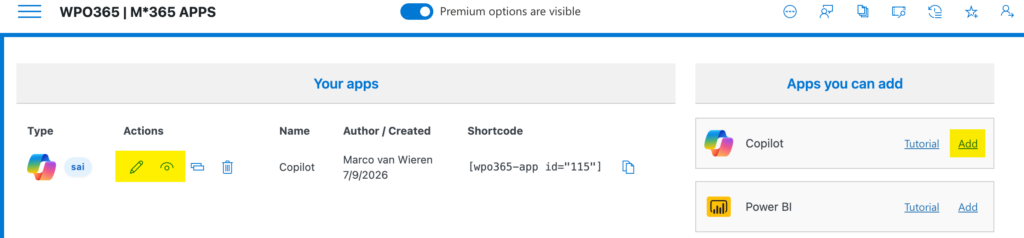
- Select Copilot.
- A new Copilot app is added to the Your apps section.
- Click the Edit (pencil) icon for the newly created app.
- The configuration editor opens in a panel that slides in from the right side of the screen.
- Optionally update the friendly name displayed at the top of the editor.
- Optionally adjust the request timeout, which defaults to 90 seconds.
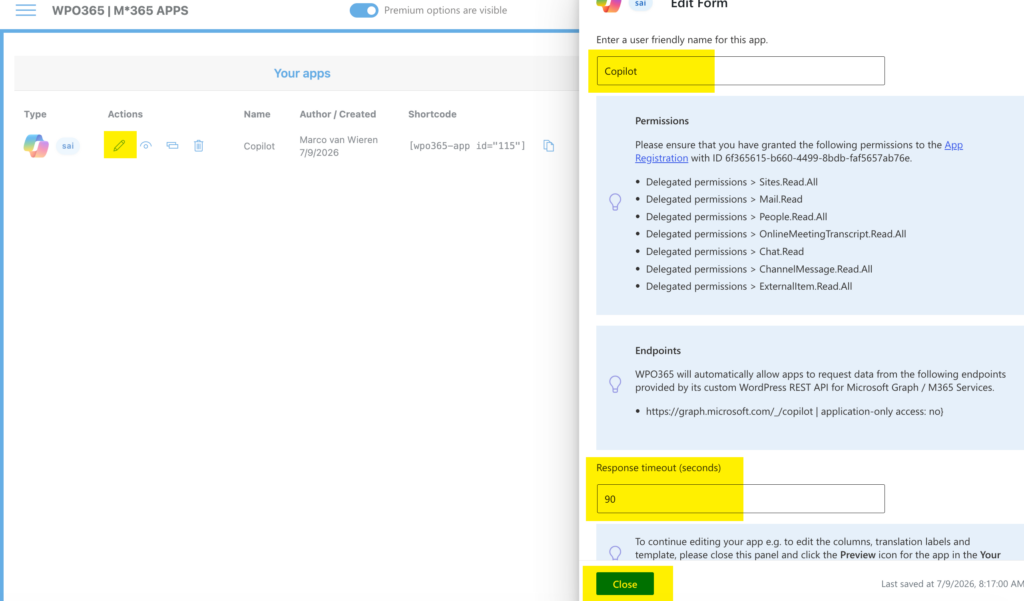

Important Some hosting providers impose request timeouts that are shorter than the configured timeout. In those cases, the hosting provider’s limits take precedence.
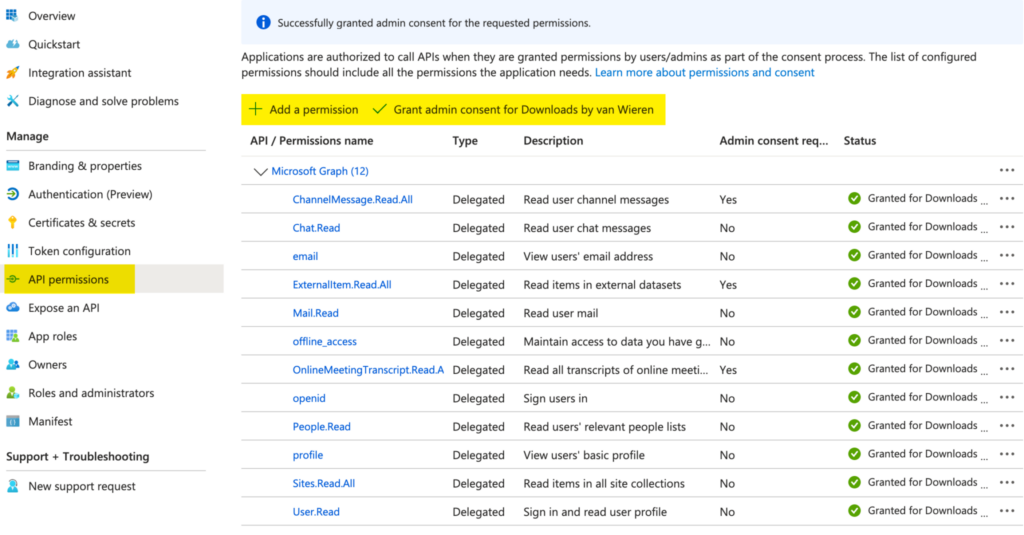
- Grant the following delegated Microsoft Graph API permissions to your Entra ID App Registration:
- Sites.Read.All
- Mail.Read
- People.Read.All
- OnlineMeetingTranscript.Read.All
- Chat.Read
- ChannelMessage.Read.All
- ExternalItem.Read.All